Computer classe for 10 th and 12 th 3000 rupees *DURATION 30 days
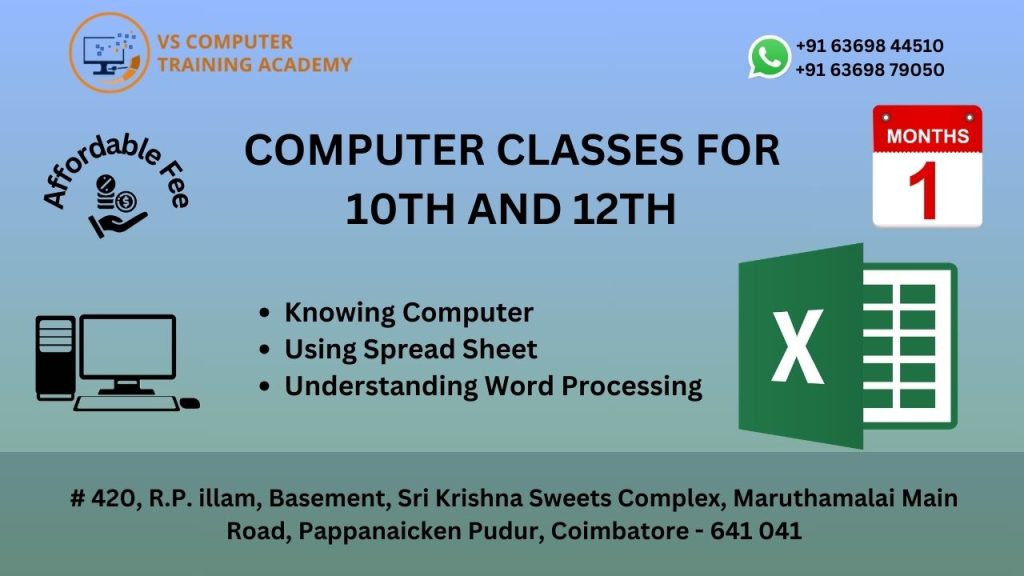
Computer Classes for 10th & 12th Students
The Computer Classes for 10th & 12th Students at VS Computer Training Academy are specially designed to equip students with essential computer skills required for higher studies, competitive exams, and future careers. This course focuses on practical knowledge, productivity tools, and digital skills that are crucial in today’s academic and professional environment.
As students approach important academic milestones, having strong computer knowledge gives them a significant advantage in project work, presentations, and future career opportunities.
Course Overview
This program offers a comprehensive learning experience covering important computer applications and digital tools. Students will gain hands-on training to confidently handle academic tasks and build a strong technical foundation for advanced studies.
What You Will Learn
- Computer Fundamentals & Advanced Basics
- Operating System (Windows) – Advanced Usage
- MS Word (Project work, formatting, reports)
- MS Excel (Formulas, tables, basic data analysis)
- MS PowerPoint (Professional presentations)
- Internet & Research Skills
- Email Writing & Communication
- Introduction to Digital Tools for Students
Course Duration & Fees
Duration: 30 Days
Course Fee: ₹3000
Teaching Methodology
- Practical and hands-on training
- Real-time academic-based assignments
- Step-by-step learning approach
- Individual attention and guidance
- Doubt clearing sessions
Why Choose This Course?
- Tailored for 10th & 12th students
- Helps in school projects and presentations
- Improves productivity and digital confidence
- Builds a strong base for college-level learning
- Experienced trainers and structured curriculum
Benefits for Students
- Better performance in academic projects
- Improved presentation and communication skills
- Strong foundation in computer applications
- Increased confidence in using digital tools
- Preparation for future career opportunities
Who Can Join?
- Students studying in 10th and 12th standard
- Students preparing for board exams
- Beginners and intermediate learners
Get Future-Ready with Essential Computer Skills
Join VS Computer Training Academy and gain the knowledge and confidence needed to excel in academics and beyond.
📞 Contact: +91 63698 44510 / +91 63698 79050
📍 Location: Coimbatore
Course Syllabus
Module
1.0 Introduction
1.1 Objectives
1.2 What is Computer?
1.3 Basic Applications of Computer
1.4 Components of Computer System
1.5 Central Processing Unit
1.6 Keyboard, mouse and VDU
1.7 Other Input devices
1.8 Other Output devices
1.9 Computer Memory
1.10 Concept of Hardware and Software
1.11 Hardware
1.12 Software
1.13 Application Software
1.14 Systems software
1.15 Concept of computing, data and information
1.16 Connecting keyboard, mouse, monitor and printer to CPU
1.17 Checking power supply
1.18 Summary
2. OPERATING COMPUTER USING GUI BASED OPERATING SYSTEM
2.0 Introduction
2.1 Objectives
2.2 Basics of Operating System
2.3 Operating system
2.4 Basics of popular operating system (LINUX, WINDOWS)
2.5 The User Interface
2.6 Task Bar
2.7 Icons
2.8 Menu
2.9 Running an Application
2.10 Operating System Simple Setting
2.11 Changing System Date And Time
2.12 Changing Display Properties
2.13 To Add Or Remove A Windows Component
2.14 Changing Mouse Properties
2.15 Adding and removing Printers
2.16 File and Directory Management
2.17 Creating and renaming of files and directories
2.18 Common utilities
2.19 Summary
3. UNDERSTANDING WORD PROCESSING
3.0 Introduction
3.1 Objectives
3.2 Word Processing Basics
3.3 Opening Word Processing Package
3.4 Menu Bar
3.5 Using The Help
3.6 Using The Icons Below Menu Bar
3.7 Opening and closing Documents
3.8 Opening Documents
3.9 Save and Save as
3.10 Page Setup
3.11 Print Preview
3.12 Printing of Documents
3.13 Text Creation and manipulation
3.14 Document Creation
3.15 Editing Text
3.16 Text Selection
3.17 Cut, Copy and Paste
3.18 Spell check
3.19 Thesaurus
3.20 Formatting the Text
3.21 Font and Size selection
3.22 Alignment of Text
3.23 Paragraph Indenting
3.24 Bullets and Numbering
3.25 Changing case
3.26 Table Manipulation
3.27 Draw Table
3.28 Changing cell width and height
3.29 Alignment of Text in cell
3.30 Delete / Insertion of row and column
3.31 Border and shading
3.32 Summary
3.33 Model Answers
4. USING SPREAD SHEET
4.0 Introduction
4.1 Objectives
4.2 Elements of Electronic Spread Sheet
4.3 Opening of Spread Sheet
4.4 Addressing of Cells
4.5 Printing of Spread Sheet
4.6 Saving Workbooks
4.7 Manipulation of Cells
4.8 Entering Text, Numbers and Dates
4.9 Creating Text, Number and Date Series
4.10 Editing Worksheet Data
4.11 Inserting and Deleting Rows, Column
4.12 Changing Cell Height and Width
4.13 Formulas and Function
4.14 Using Formulas
4.15 Function
4.16 Summary
5. INTRODUCTION TO INTERNET, WWW AND WEB BROWSERS
5.0 Introduction
5.1 Objectives
5.2 Basic of Computer Networks
5.3 Local Area Network (LAN)
5.4 Wide Area Network (WAN)
5.5 Internet
5.6 Concept of Internet
5.7 Applications of Internet
5.8 Connecting to the Internet
5.9 Troubleshooting
5.10 World Wide Web (WWW)
5.11 Web Browsing Softwares
5.12 Popular Web Browsing Softwares
5.13 Search Engines
5.14 Popular Search Engines / Search for content
5.15 Accessing Web Browser
5.16 Using Favorites Folder
5.17 Downloading Web Pages
5.18 Printing Web Pages
5.19 Understanding URL
5.20 Surfing the web
6. COMMUNICATIONS AND COLLABORATION
6.0 Introduction
6.1 Objectives
6.2 Basics of E-mail
6.3 What is an Electronic Mail
6.4 Email Addressing
6.5 Using E-mails
6.6 Opening Email account
6.7 Mailbox: Inbox and Outbox
6.8 Creating and Sending a new E-mail
6.9 Replying to an E-mail message
6.10 Forwarding an E-mail message
6.11 Sorting and Searching emails
6.12 Document collaboration
6.13 Instant Messaging and Collaboration
6.14 Using Instant messaging
6.15 Instant messaging providers
6.6 Summary
7. MAKING SMALL PRESENTATIONS
7.0 Introduction
7.1 Objectives
7.2 Basics
7.3 Using PowerPoint
7.4 Opening A PowerPoint Presentation
7.5 Saving A Presentation
7.6 Creation of Presentation
7.7 Creating a Presentation Using a Template
7.8 Creating a Blank Presentation
7.9 Entering and Editing Text
7.10 Inserting And Deleting Slides in a Presentation
7.11 Preparation of Slides
7.12 Inserting Word Table or An Excel Worksheet
7.13 Adding Clip Art Pictures
7.14 Inserting Other Objects
7.15 Resizing and Scaling an Object
7.16 Presentation of Slides
7.17 Viewing A Presentation
7.18 Choosing a Set Up for Presentation
7.19 Printing Slides And Handouts
7.20 Slide Show
7.21 Running a Slide Show
7.22 Transition and Slide Timings
7.23 Automating a Slide Show
7.24 Summary